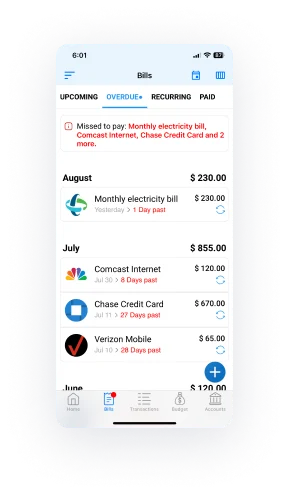
What happens when you pay bills on time?

Expense tracking might seem like a chore, but it's a powerful tool for taking control of your finances. Here's how it can benefit you:

  • 1
    Maintaining good credit score: Timely bill payments are crucial in determining your credit score. Consistently paying bills on time demonstrates financial responsibility and can help improve or maintain a good credit score. A good credit score can make qualifying for loans, credit cards, and favorable interest rates easier.
  • 2
    Avoiding late fees: Paying bills on time helps you avoid late payment fees and penalties. Late fees can add up and increase the overall cost of bills, so timely payments can save you money in the long run.
  • 3
    Preserving financial reputation: Consistently paying bills on time helps to maintain a positive financial reputation. It shows creditors and service providers that you are reliable and trustworthy, which can be beneficial when applying for new credit or services in the future.
  • 4
    Preventing service disruptions: Timely bill payments ensure that essential services, such as utilities, internet, and phone services, remain active without interruption. Avoiding service disruptions can help maintain convenience and continuity in your daily life.
  • 5
    Reducing stress: By staying on top of bill payments and avoiding late fees, you can reduce financial stress and worry. Knowing that your bills are paid on time can provide peace of mind and allow you to focus on other aspects of your life.

Overall, paying bills on time is an important aspect of financial management that can lead to various benefits, including better credit, cost savings, and peace of mind.

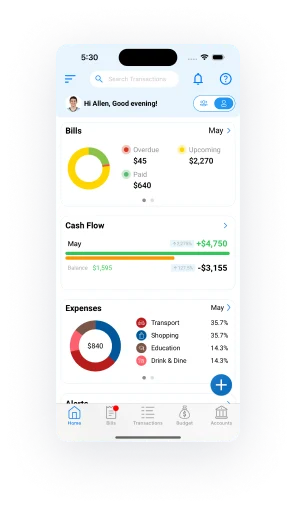
Organize your bills in the Timelybills app

Add Bill to the TimelyBills app

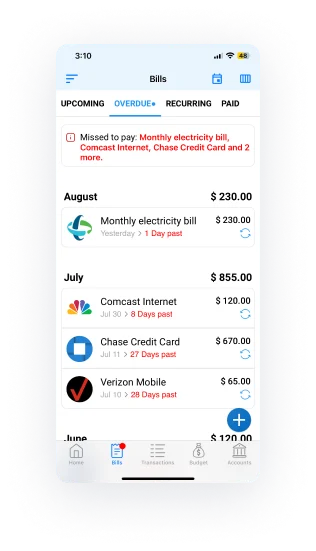
  • Step 1 : Navigate to the Bills Tab
    1
    Click on the “Bills” tab on the home screen.
  • 2
    Tap on the "" icon on the bottom right corner of the screen.
  • Step 2 : Navigate to the Bills Tab
    1
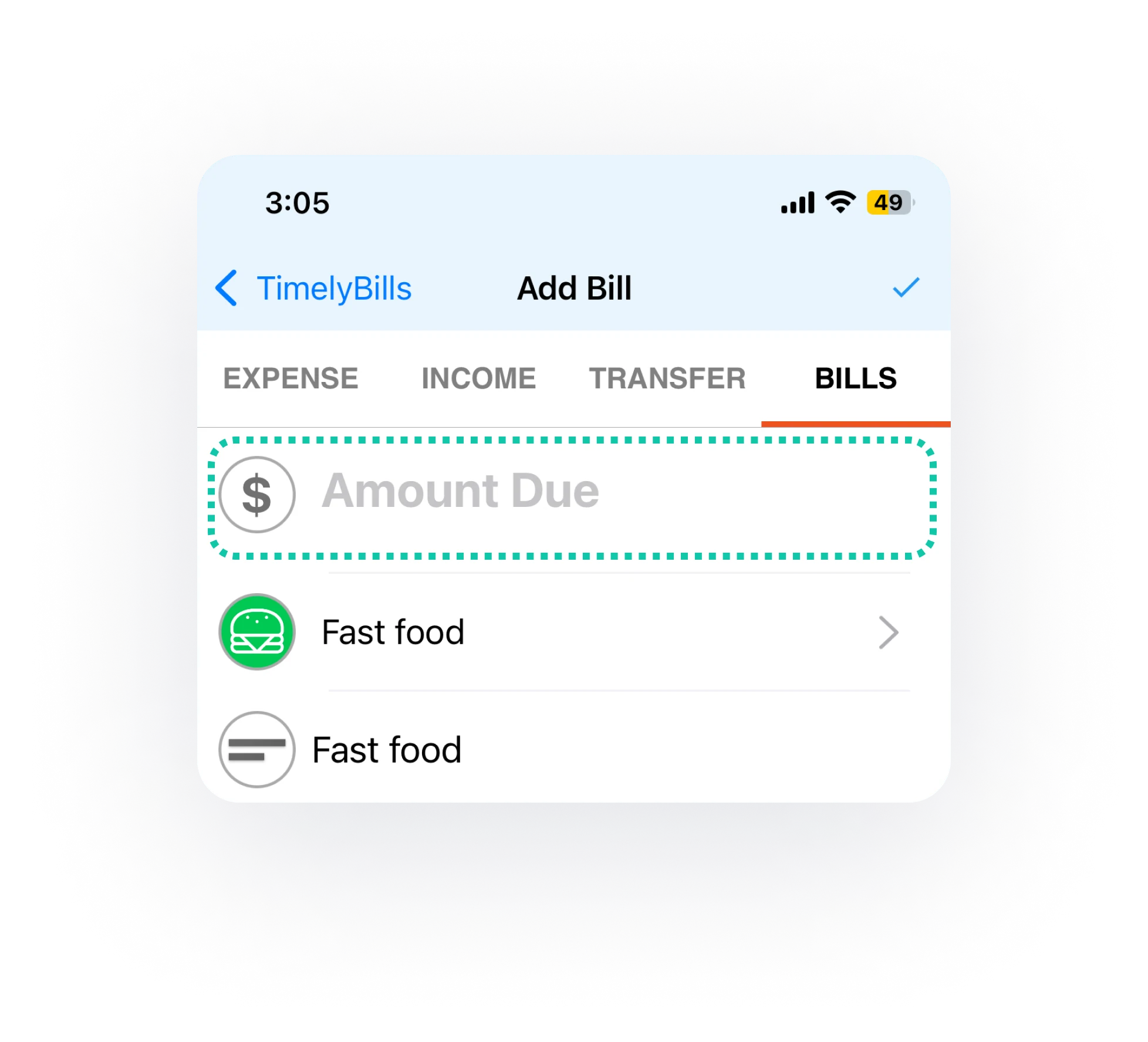
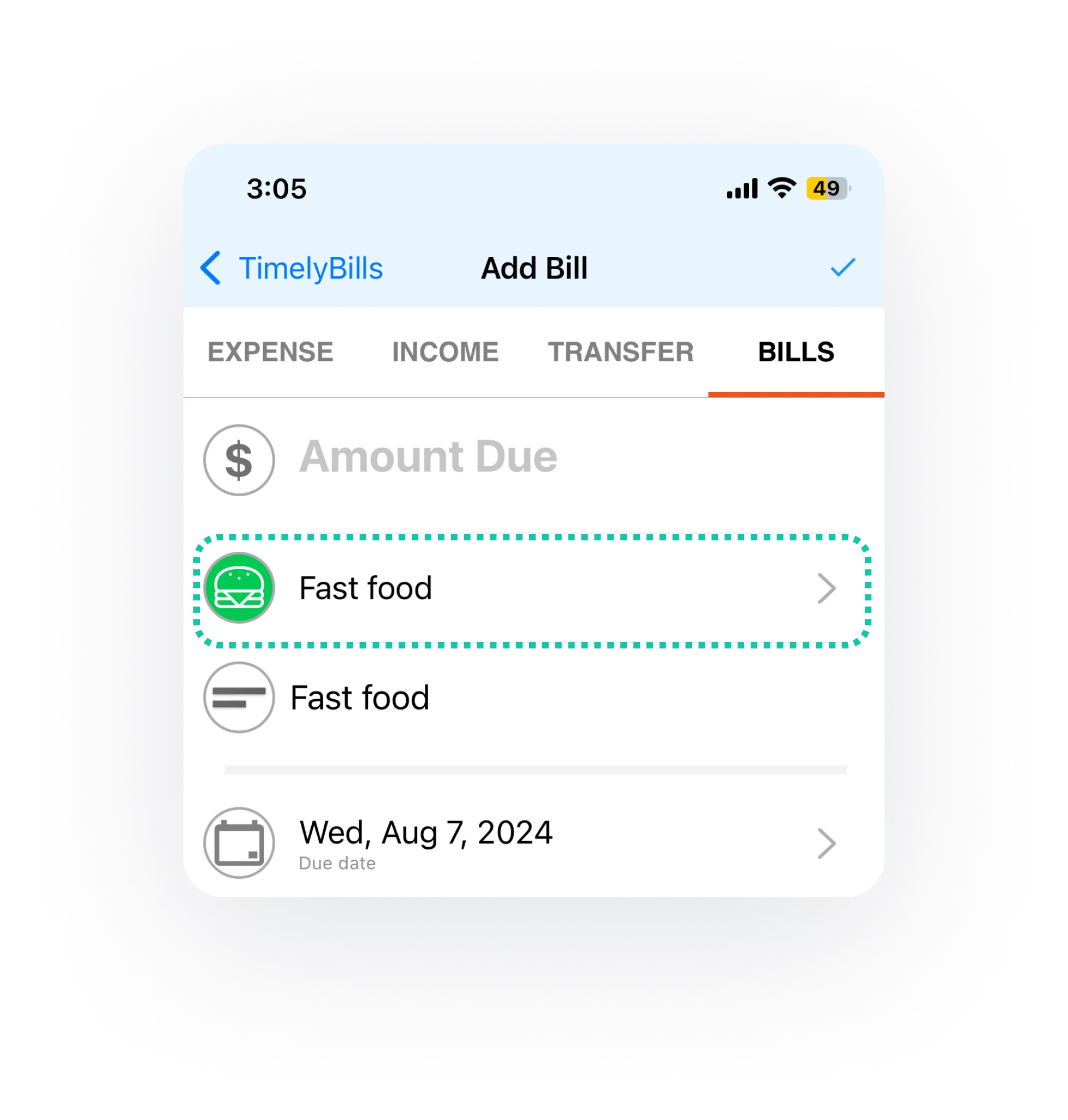
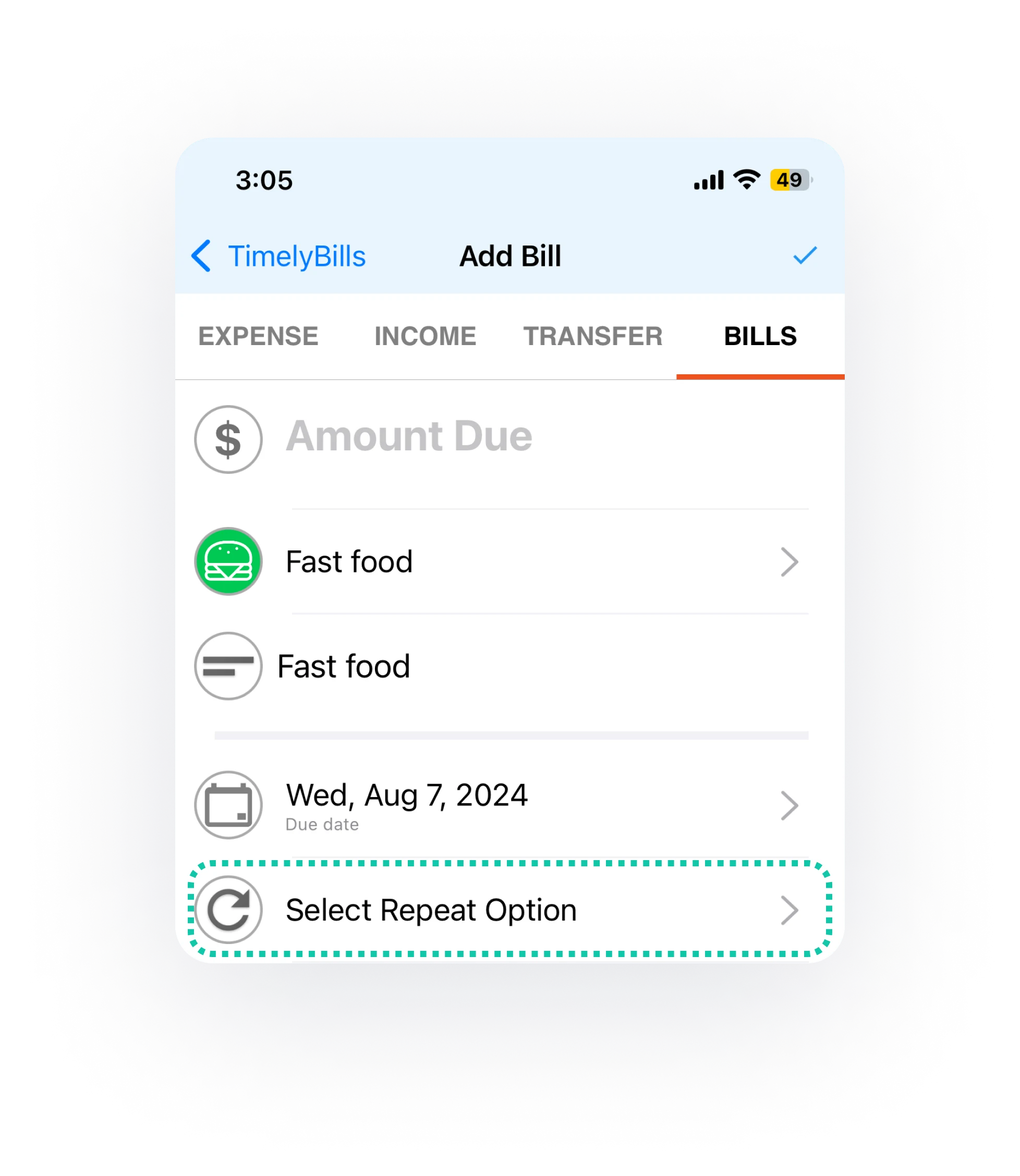
    Input the billing amount into the designated field and categorize your bill
  • 2
    Choose a due date for the bill
  • 3
    Set the recurrence frequency for your bills, whether weekly, monthly, or a custom period
  • 4
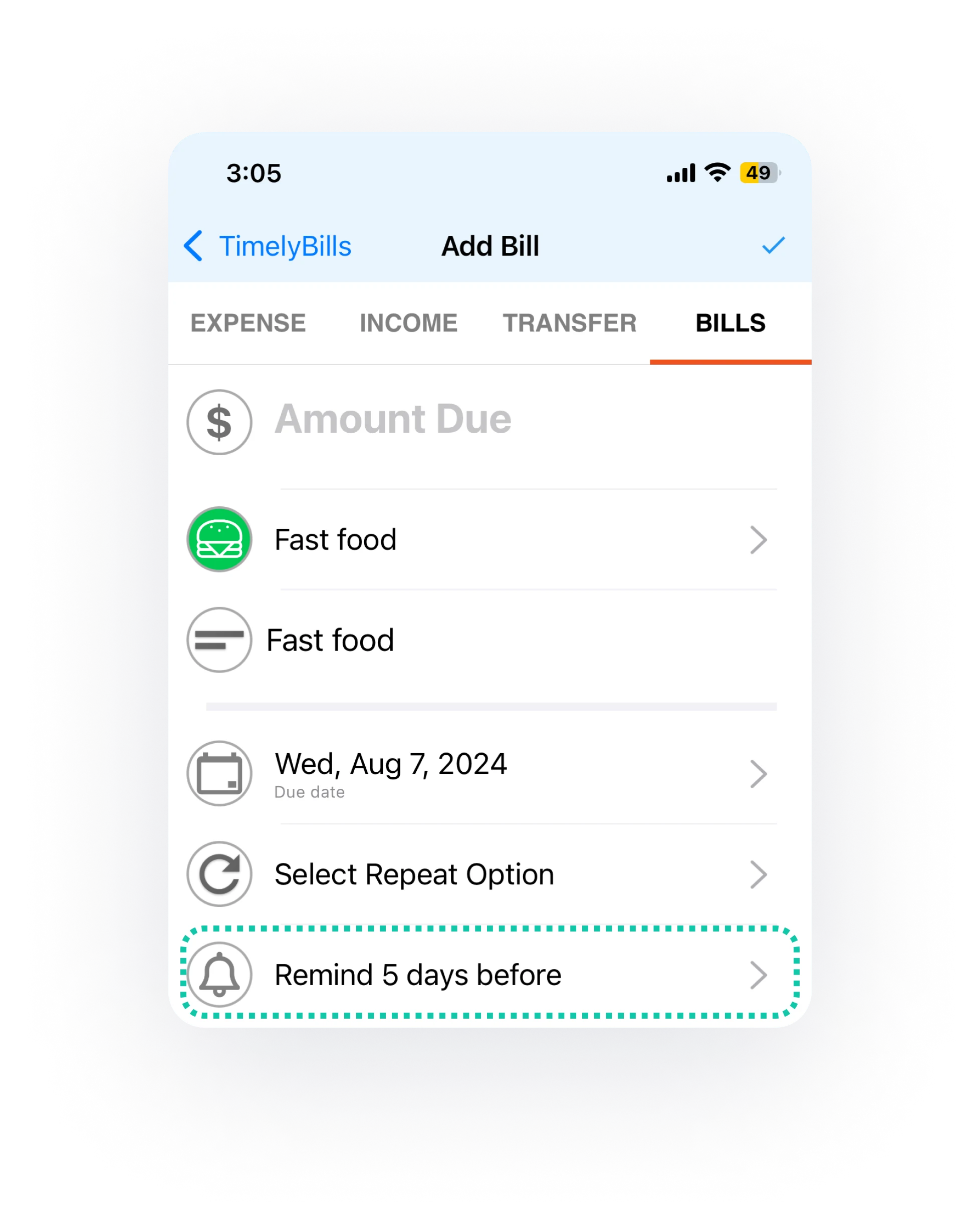
    Enable reminders to receive automatic notifications based on your preferences.
  • 5
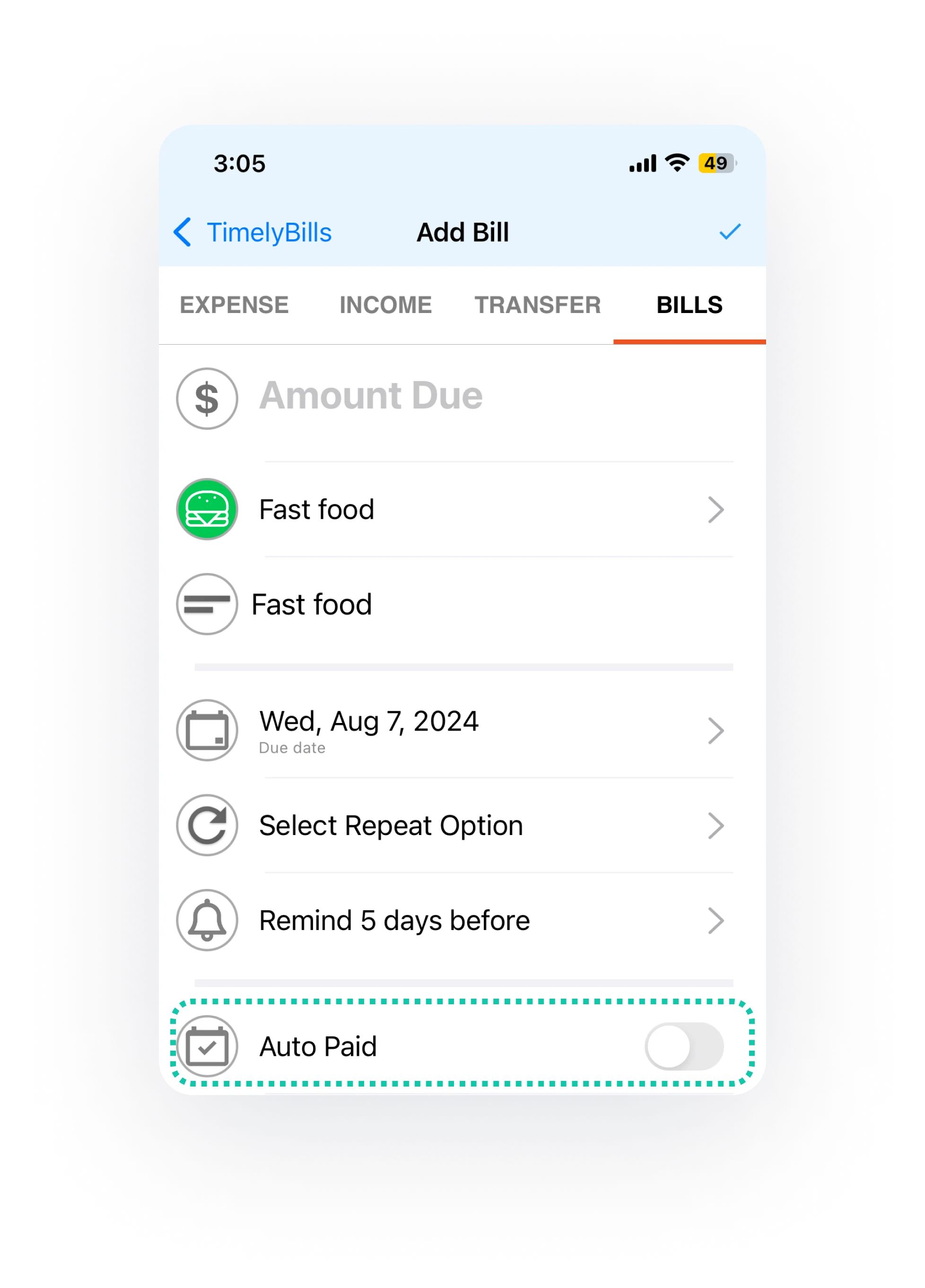
    Now you can opt-in to mark your bill paid automatically.
  • 6
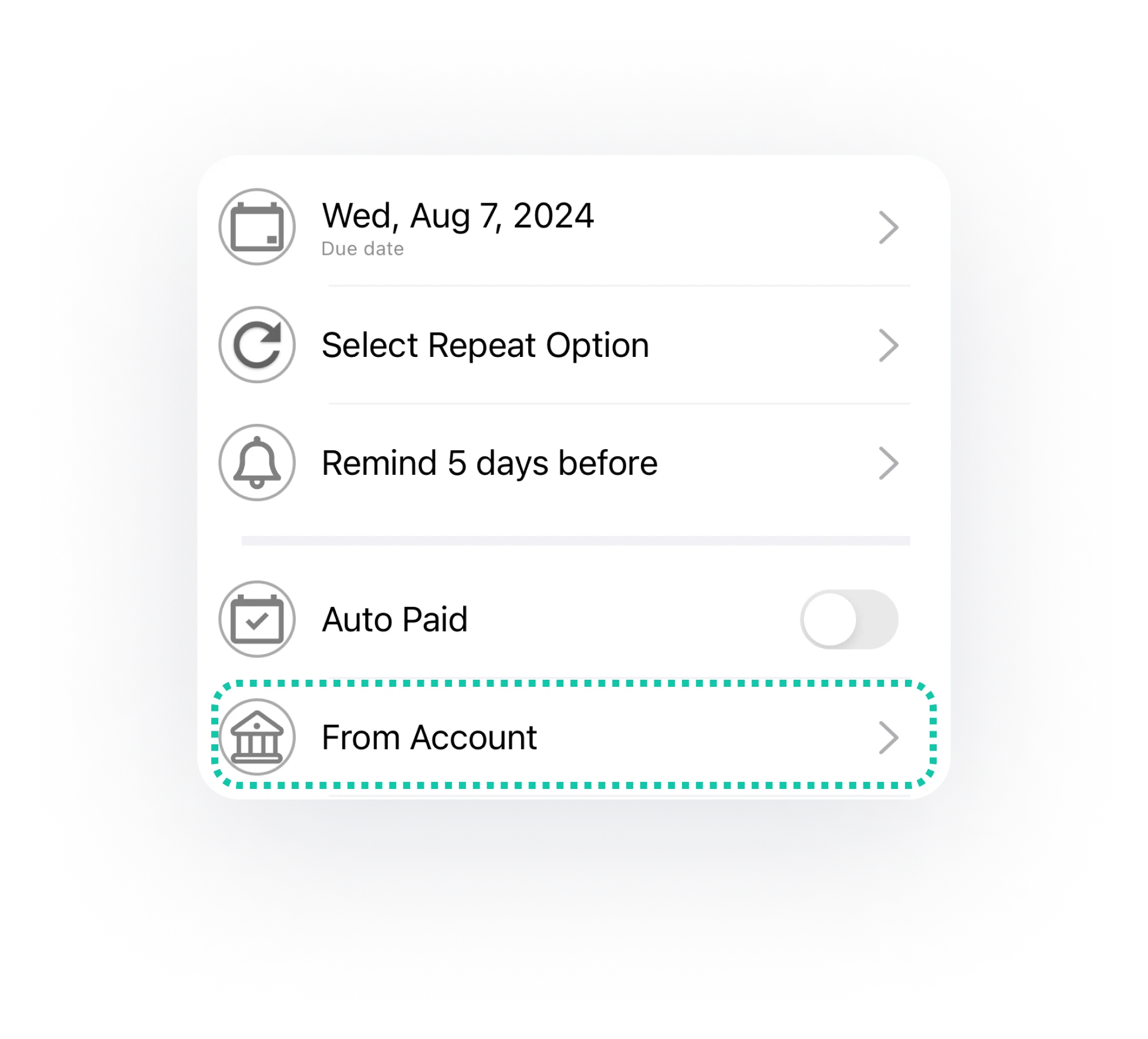
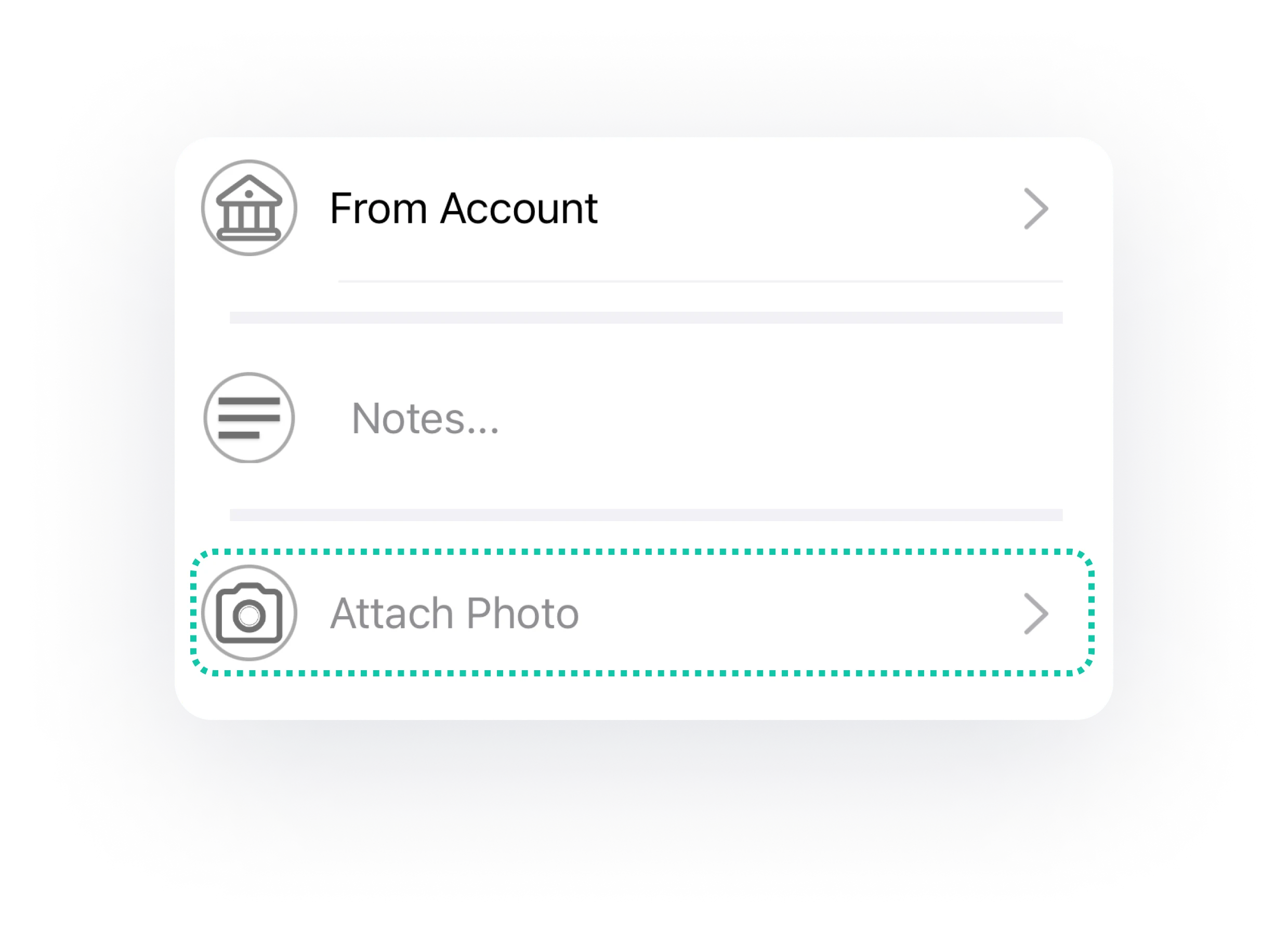
    Select the account you wish to use for bill payment.
  • 7
    Optionally attach an image of the bill for future reference.
Note: By enabling auto-paid you can add an expense entry for your bill in your selected account

The above steps will help you add your bills to the TimelyBills app. Once your bills are added, you can then proceed to track bill payments, set reminders, and manage recurring bills.
Setup a Loan or Credit card Account

To add a single credit card bill or loan payment, follow the standard “Add Bills” process in TimelyBills. However, if you add your entire credit card account or loan account, TimelyBills can automatically generate, remind you of, and track your credit card bills or loan payments every month.
Learn how to add accounts in TimelyBills app

Setting Notification Preferences

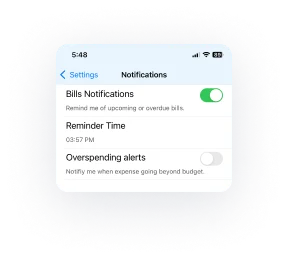
You can customize bill notifications to suit your preferences by adjusting notification settings. This includes changing the notification date, time, and frequency. Here is how to do it.

  • a
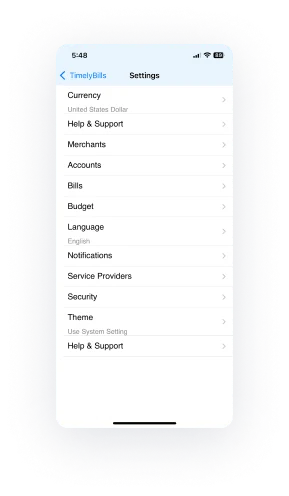
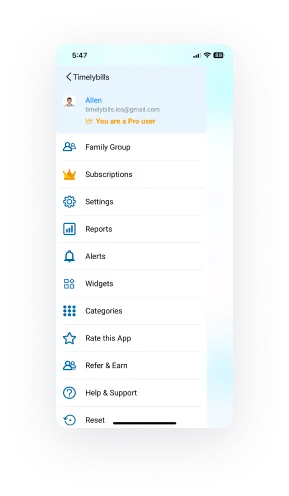
    On the home screen, navigate to the menu located in the top left corner.
  • b
    From there, select 'Settings' and then look for 'Notifications'.
  • c
    Within the Notifications section, you can enable or disable notifications for various alerts and also set a preferred time of day to receive them.

Auto paid

Enabling auto-pay simplifies bill management by automatically marking bills as paid on their due date, preceded by timely reminders. This feature also eliminates manual expense entry by generating expense records within your designated account, budget, and expense tracker. 
Refer to the 'Add bills' section of the TimelyBills app to learn how to activate auto-pay.

Mark Multiple Bills Paid

  • a
    On the home screen, navigate to the menu located in the top left corner.
    b
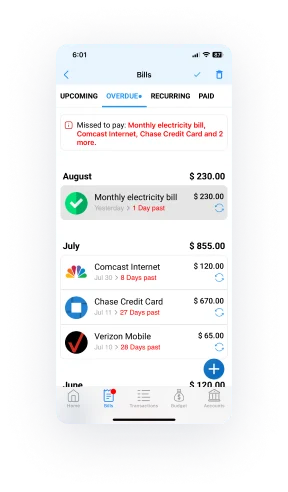
    Press and hold on to the bill you want to mark as paid to select it.
  • c
    When you're finished, tap "Done" in the top right corner, and all selected bills will be marked as paid.
Related Topics:-

How can I integrate my bills calendar with Google Calendar?

How to integrate my bills reminder with Outlook Calendar?

How do I select a custom repeat frequency for a bill?